
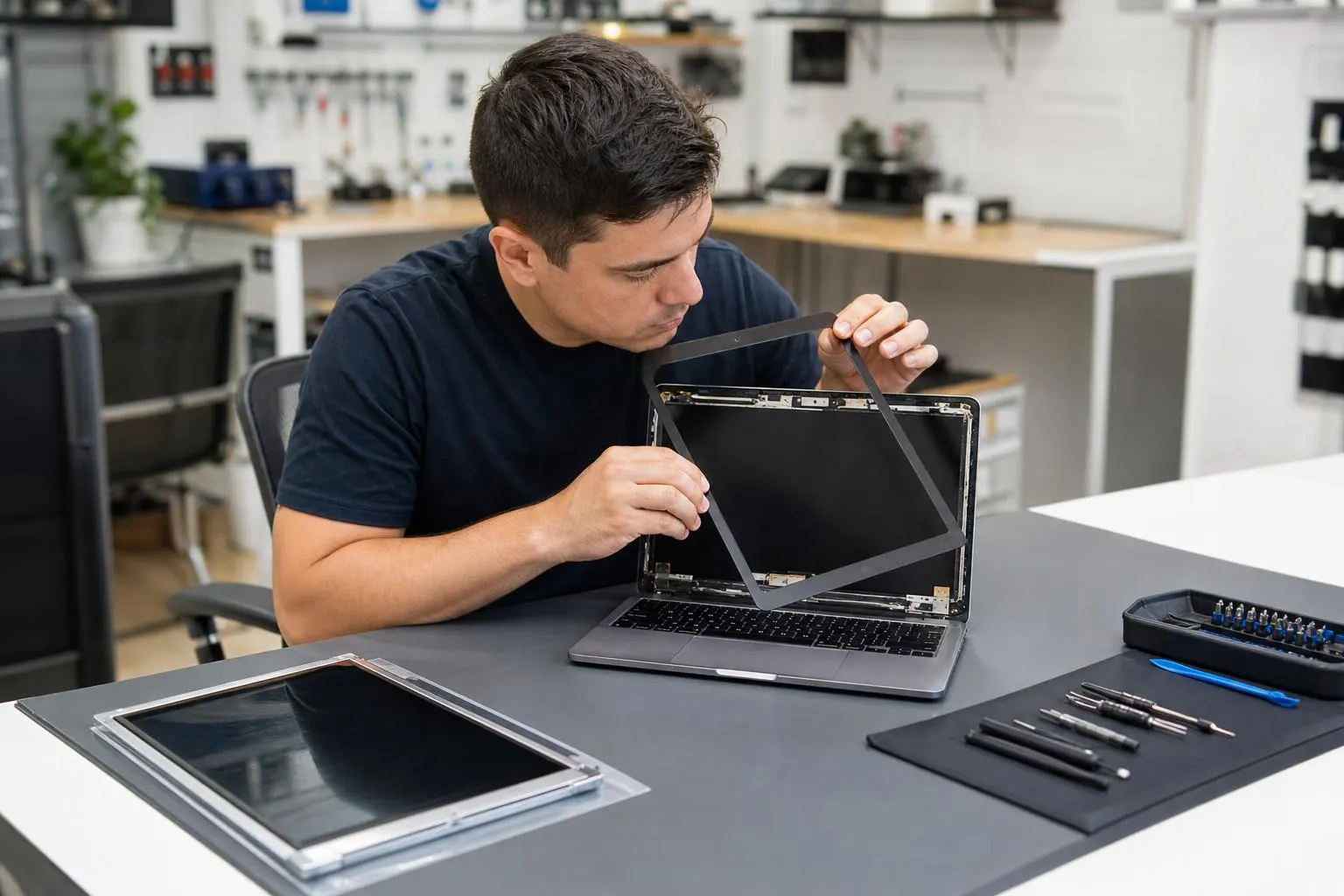
Laptop Screen Flickers When the Lid Moves: Cable, Hinge, or Panel?
Step-by-step guide to identify common laptop display problems, safe DIY checks, and when to bring your device to Fixit Solutions Inc. in Lake Forest for professional screen replacement.
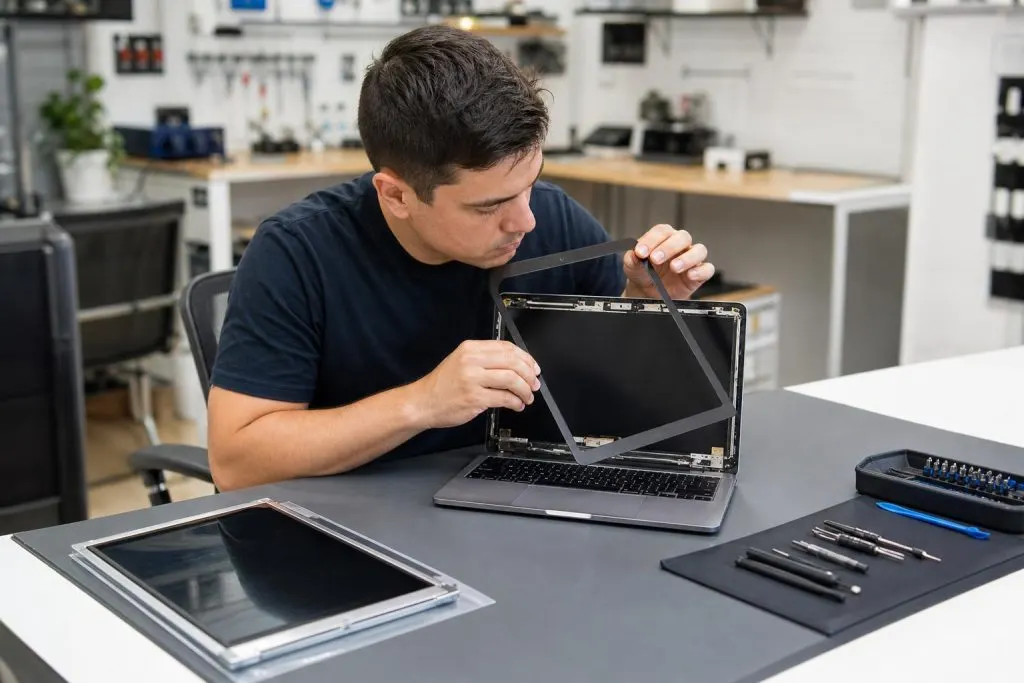
If a laptop screen flickers, changes color, or goes black when the lid moves, the problem is often mechanical rather than a general software glitch. The display cable travels through or near the hinge area, where repeated opening and closing can expose a loose connection, cable wear, hinge damage, or panel fault.
This article addresses movement-related display symptoms. For general service information, use the main laptop screen and computer repair page.
Test the symptom without forcing the hinge
Place the laptop on a stable surface and move the lid only through its normal range. Stop if you hear cracking, feel unusual resistance, or see the bezel or case separating. Note the exact angle where the image changes. Do not repeatedly flex the screen to “find the sweet spot”; that can worsen a damaged cable or mount.
Patterns that help narrow the cause
- Image changes at a repeatable lid angle: A cable, connector, or hinge-area problem becomes more likely.
- External monitor remains stable: The built-in display path may be involved, although this is not conclusive.
- Both internal and external displays fail: Graphics, power, board, or software faults may need consideration.
- Colored lines remain regardless of lid position: The panel or graphics path may be damaged.
- Case or bezel separates near a hinge: Stop moving the lid and arrange structural inspection.
Why a cable problem can look intermittent
A laptop display cable carries image data and, depending on the design, power and other signals through a narrow moving area. A partially seated connector, pinched cable, worn conductor, or damaged shielding may work in one position and fail in another. The visible symptom can range from a brief flash to a completely black screen.
Because cable routing differs by model, replacing a cable without checking the hinge and enclosure may leave the underlying mechanical problem unresolved.
Safe software checks
If the screen flickers even when the lid remains still, record whether it begins before the operating system loads. A symptom visible on the manufacturer logo or firmware screen is less likely to be caused solely by an ordinary application setting. When the laptop is stable, update graphics software only from the laptop or graphics manufacturer and maintain a current backup.
Do not erase the computer as a first response to a movement-dependent display failure. Reinstalling the operating system cannot repair a damaged cable, connector, hinge, or panel.
When to stop using the laptop
Shut the system down if the hinge binds, the bezel lifts, the display cable becomes visible, the case opens, or there is unusual heat or odor. Closing a damaged hinge can crack the panel or pull mounting points out of the enclosure. Transport the laptop in a stable position without placing pressure on the lid.
What a display inspection should cover
A complete inspection may include the LCD or OLED panel, internal display cable, connectors, hinges, lid cover, bezel, lower case, graphics output, and external-display behavior. The correct repair could involve reseating a connection, replacing a cable or panel, correcting hinge damage, or addressing a board-level fault.
Bring model details and evidence
Record the brand, full model number, and any product or service identifier. Take a short video if the flicker is intermittent, but do not keep flexing a damaged lid to capture it. Bring the normal charger and explain whether an external display works.
Fixit Solutions can inspect supported laptops at its Lake Forest storefront. Options depend on the exact model, panel type, cable routing, hinge condition, diagnostics, and correct-part availability. Prepare with our device repair checklist and request service through the main laptop repair page.