
Dell Inspiron Wi-Fi Keeps Disconnecting: Router or Laptop?
Local laptop repair in Irvine and nearby Lake Forest. Fast diagnostics, secure data handling, clear estimates, and support for Windows and Mac laptops.
Dell Inspiron owners may describe Wi-Fi that disconnects repeatedly as one problem, but several components can create the same symptom. The problem may be limited to one network, follow the laptop between locations, or appear only after sleep, which points to different causes.
This guide addresses Dell Inspiron Wi-Fi keeps disconnecting specifically. For broader service information, use our Lake Forest laptop and network-support page.
Document the exact behavior first
Note whether other devices lose connection, whether the Inspiron disconnects on another trusted network, and whether the Wi-Fi icon disappears or simply reports no internet.
Record when it began, whether it is constant, and what changed immediately beforehand. A short video or error photo can preserve an intermittent symptom without repeated testing.
Safe checks before service
Restart the router once if authorized, forget and reconnect to the network, test near the access point, disconnect VPN software temporarily when appropriate, and install Dell or Microsoft network updates one at a time.
Use only compatible power and data accessories. Change one condition at a time so the result remains meaningful, and create a current backup while the device is stable.
What the pattern may indicate
- Only one network fails can suggest router, interference, or compatibility.
- All networks fail on the Inspiron can indicate driver, antenna, or adapter trouble.
- Disconnects when the lid moves can involve antenna routing or hinge-area damage.
- Failure after sleep can involve power management or firmware.
These patterns are diagnostic clues, not proof of a failed part. Connectors, firmware, power delivery, physical damage, and board-level circuits can overlap.
Actions that can make the problem worse
Do not reset business network equipment without authorization, install generic driver packs, or disable security protections permanently.
Stop testing if these warning signs appear
Arrange inspection if the laptop was dropped, the hinge is separating, liquid entered the keyboard, or the wireless adapter disappears from diagnostics.
Disconnect power when safe and do not press a swollen case or damaged connector back into position.
What a professional inspection should cover
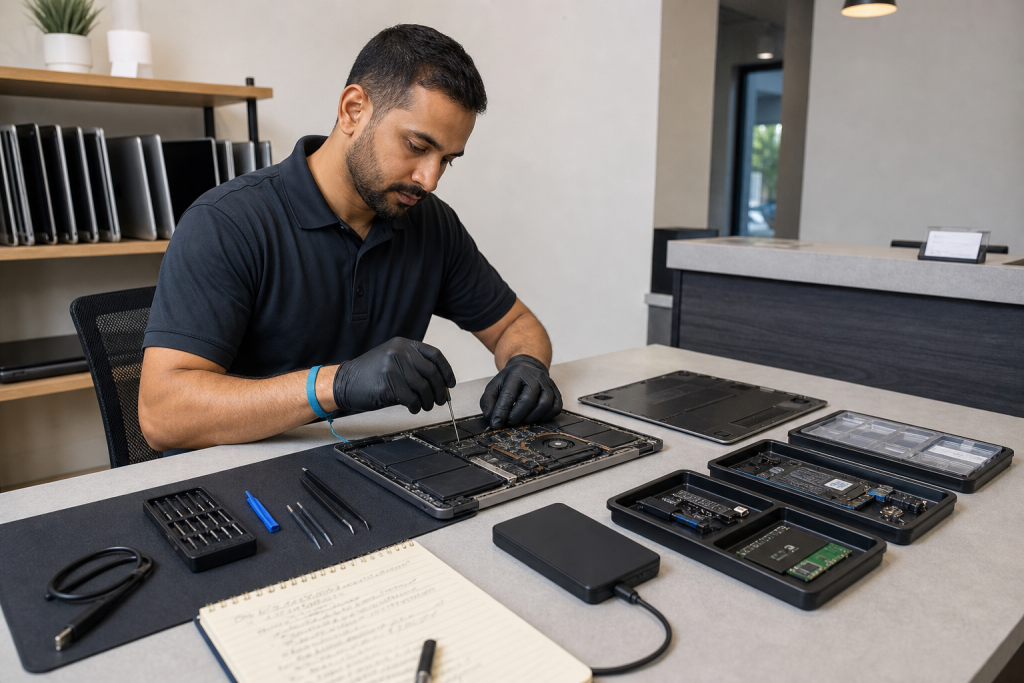
Diagnosis may compare networks, signal strength, drivers, power states, antenna connections, hinge condition, firmware, and the internal wireless module.
The exact Dell Inspiron variant matters because parts, connectors, and internal layouts can differ within the same product family.
Prepare for a repair visit
Bring the device, its normal charger, the full model or product number, and notes about the symptom. Review our device repair appointment checklist before visiting.
Fixit Solutions can inspect supported devices at its Lake Forest storefront. Options and timing depend on condition, diagnostics, authorization, and correct-part availability. Start with the Lake Forest laptop and network-support page.